

Before you begin
Make sure you have:- A terminal open in a code project
- A Git repository (recommended for the full workflow demonstration)
Step 1: Install and start opensre
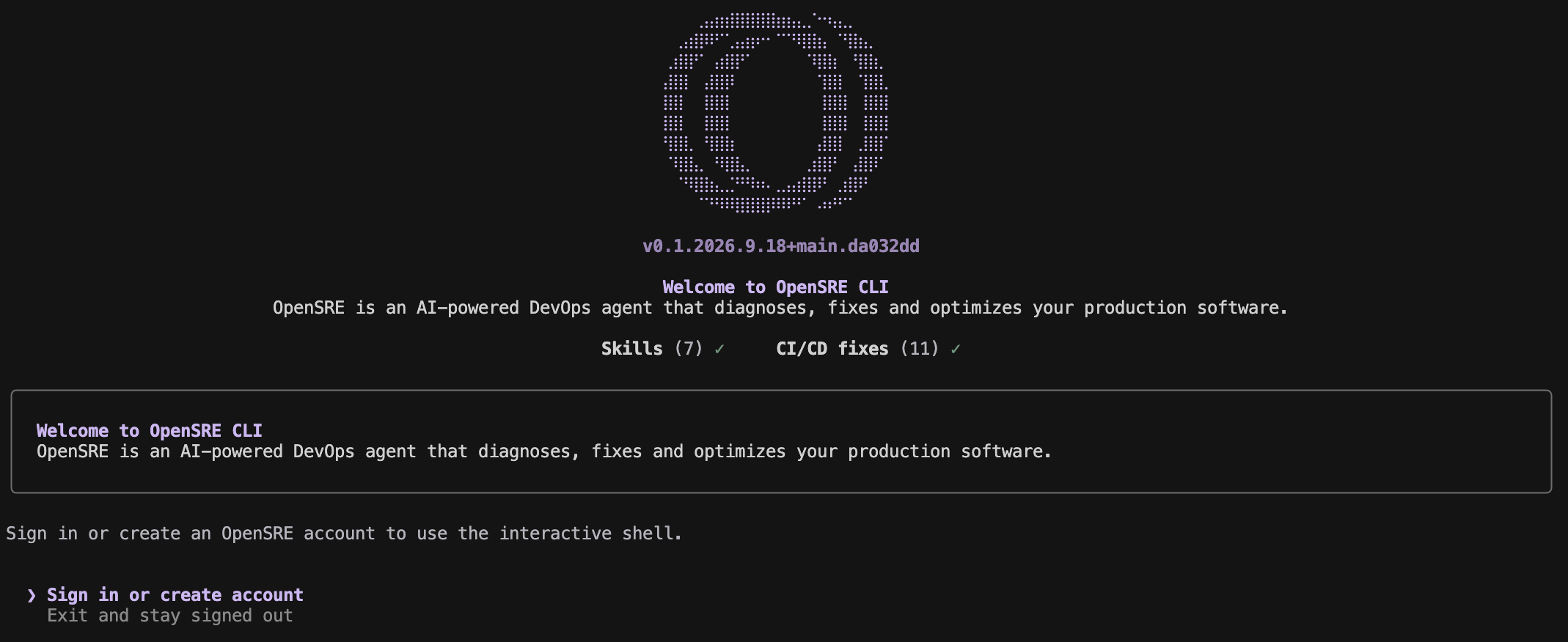
Step 2: Sign in
Choose Sign in or create account in the welcome screen. The browser opens the OpenSRE sign-up page, where you can use email or another enabled provider. Signing in activates the OpenSRE-hosted model, so you need no LLM key. Back in the terminal, OpenSRE confirms the session with the web app and opens the shell. If the sign-in screen comes back instead, see troubleshooting.Step 3: Pick a demo, or skip it
The first shell prompt asks which demo to run: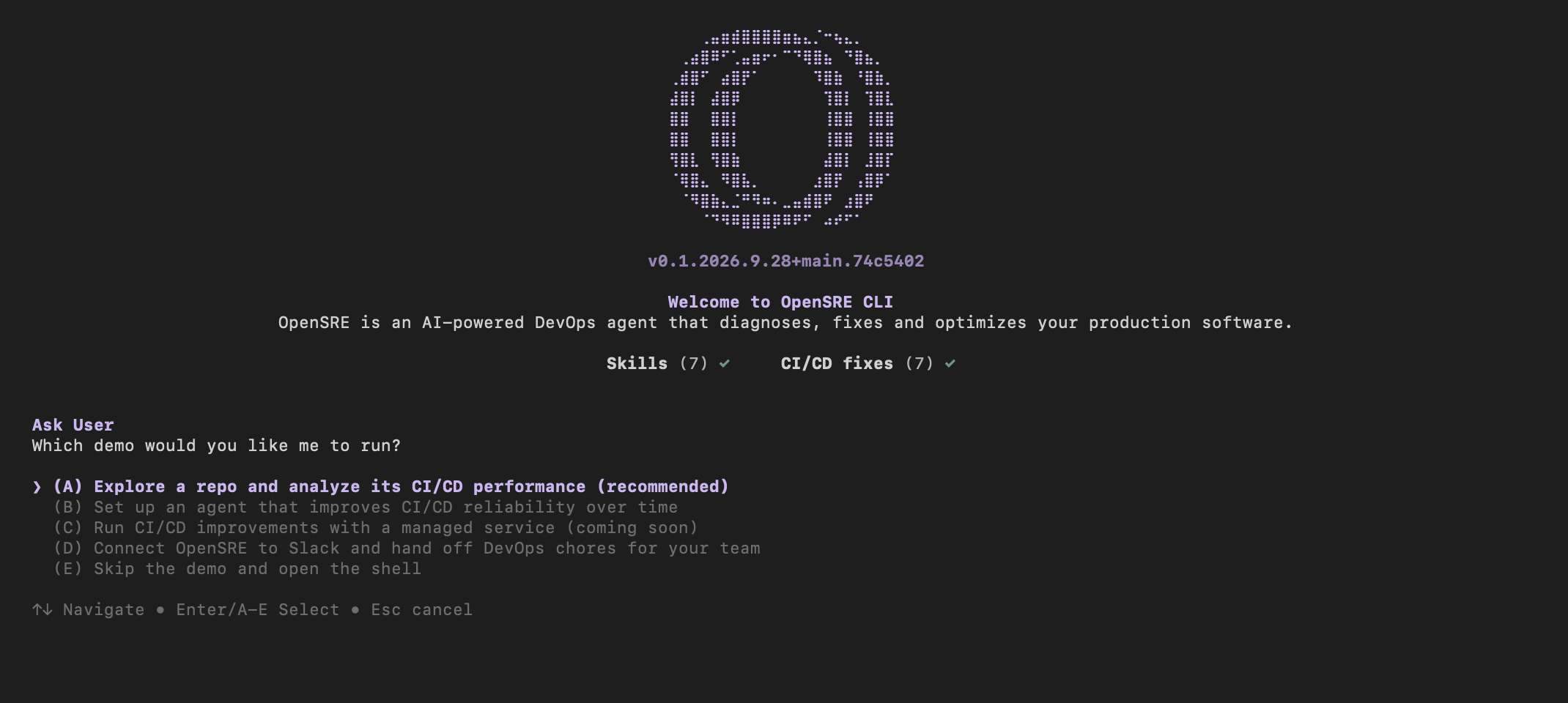
opensre integrations setup github (authorize in the browser, or
paste a token). Without it the demo stops and names that command. See
CI/CD analytics demo.
Choose E to go straight to the prompt. Type /demo to open the menu again at
any time, or start with opensre --skip-onboarding to skip it.
Step 4: Ask your first question
Choose either path — both use the same localopensre binary:
Interactive shell — start OpenSRE with no arguments and describe what’s going on in plain English:
--json output, and exit codes.
Inside the interactive shell, /help lists commands, /status shows the current setup, /effort changes reasoning effort, and /exit closes the shell.

opensre integrations setup <service> or /integrations setup <service> in the shell.
Good first tasks, once GitHub is connected:
Step 5: Keep up to date
Uninstall
To remove opensre and all its local data from your machine:--yes to skip the confirmation prompt:
Troubleshooting
opensreis not found: Open a new terminal, or add the bin directory printed by the installer toPATH.- The Linux binary does not start: Prebuilt binaries require glibc 2.35 or newer; use a supported distribution or the Docker guide.
makeis missing: See the development setup guide if you are working from source.- The demo menu did not appear: Menus need an interactive terminal. Run
opensrein a terminal window rather than through a pipe or a CI job, then type/demo. - The sign-in screen comes back after you signed in: Run
opensre account status; it names what is wrong with the session (expired, revoked, or the web app unreachable).