> ## Documentation Index
> Fetch the complete documentation index at: https://opensre.com/docs/llms.txt
> Use this file to discover all available pages before exploring further.
# Viewing Task Status
> Learn how to monitor and view the status of your tasks in Tracer
On this page, we will explain how you can see the status of your tasks within a specific pipeline run. If you have not yet run a pipeline, please refer to the [quickstart](/quickstart) to get started.
When executed correctly, you should be able to see the following screen in the Tracer dashboard:
Tracer updates task status in real time, so you can monitor progress without refreshing the page.
Tracer provides detailed visibility into task execution, allowing you to track progress, identify bottlenecks, and ensure your workflows are running smoothly.
## Accessing Task Status
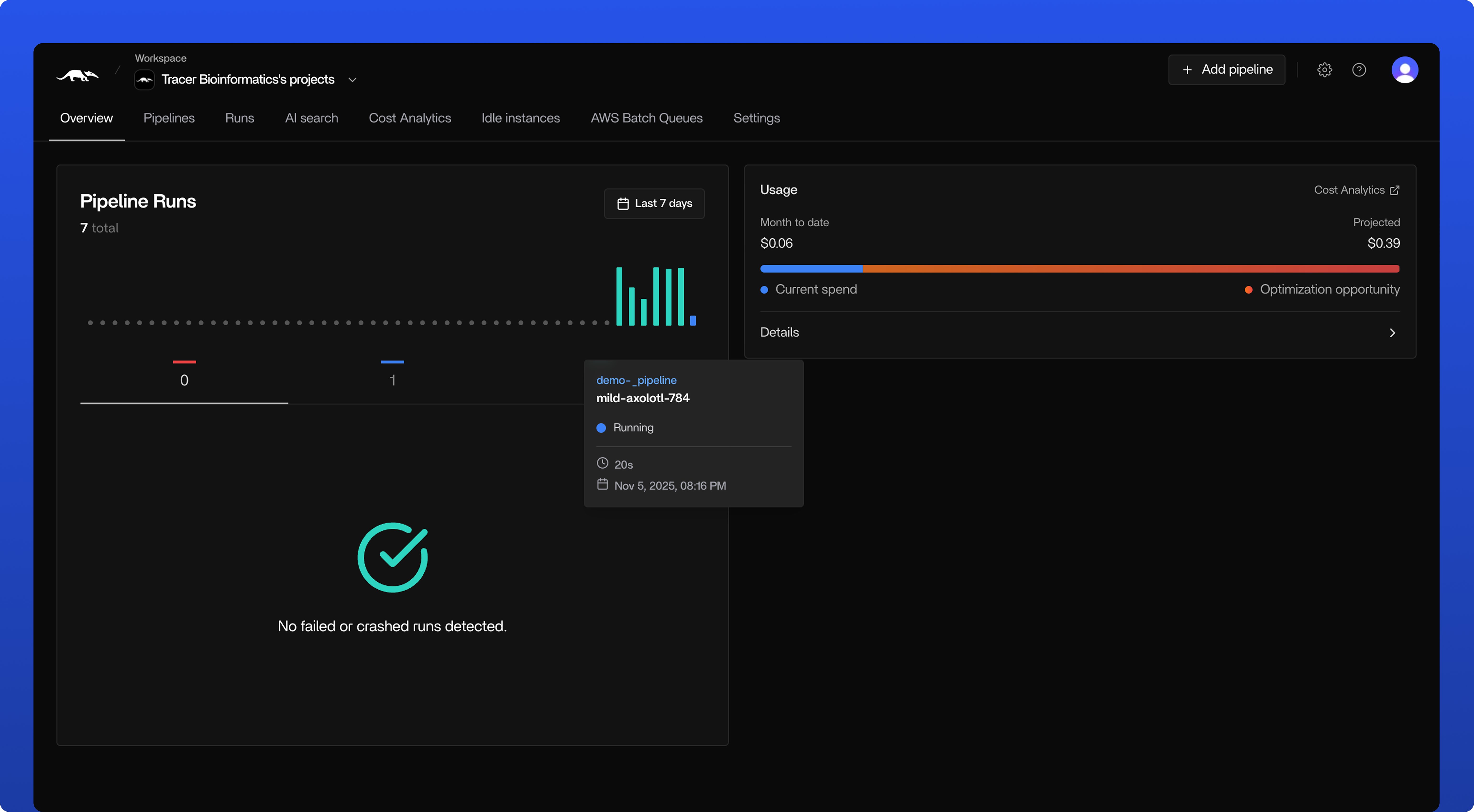
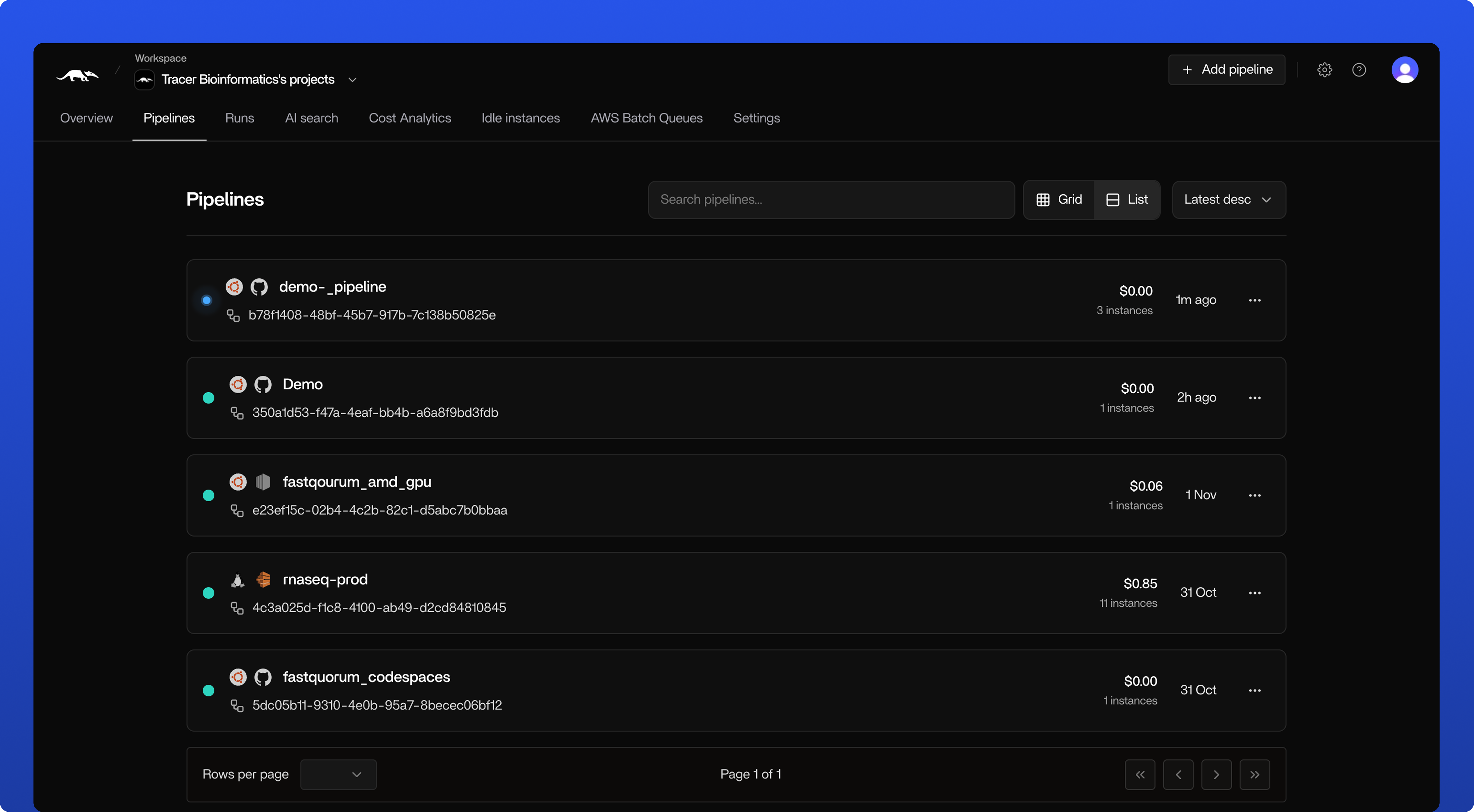
Open the Tracer dashboard and select the **"Pipelines"** tab next to "Overview". This will show you all the pipelines that have been run.
When hovering over the pipeline runs, you get more information about what pipelines have been run or are currently running.
Access your specific pipeline by clicking on the pipeline name. You can recognize the pipelines which are currently running by the blue dot next to the pipeline name.
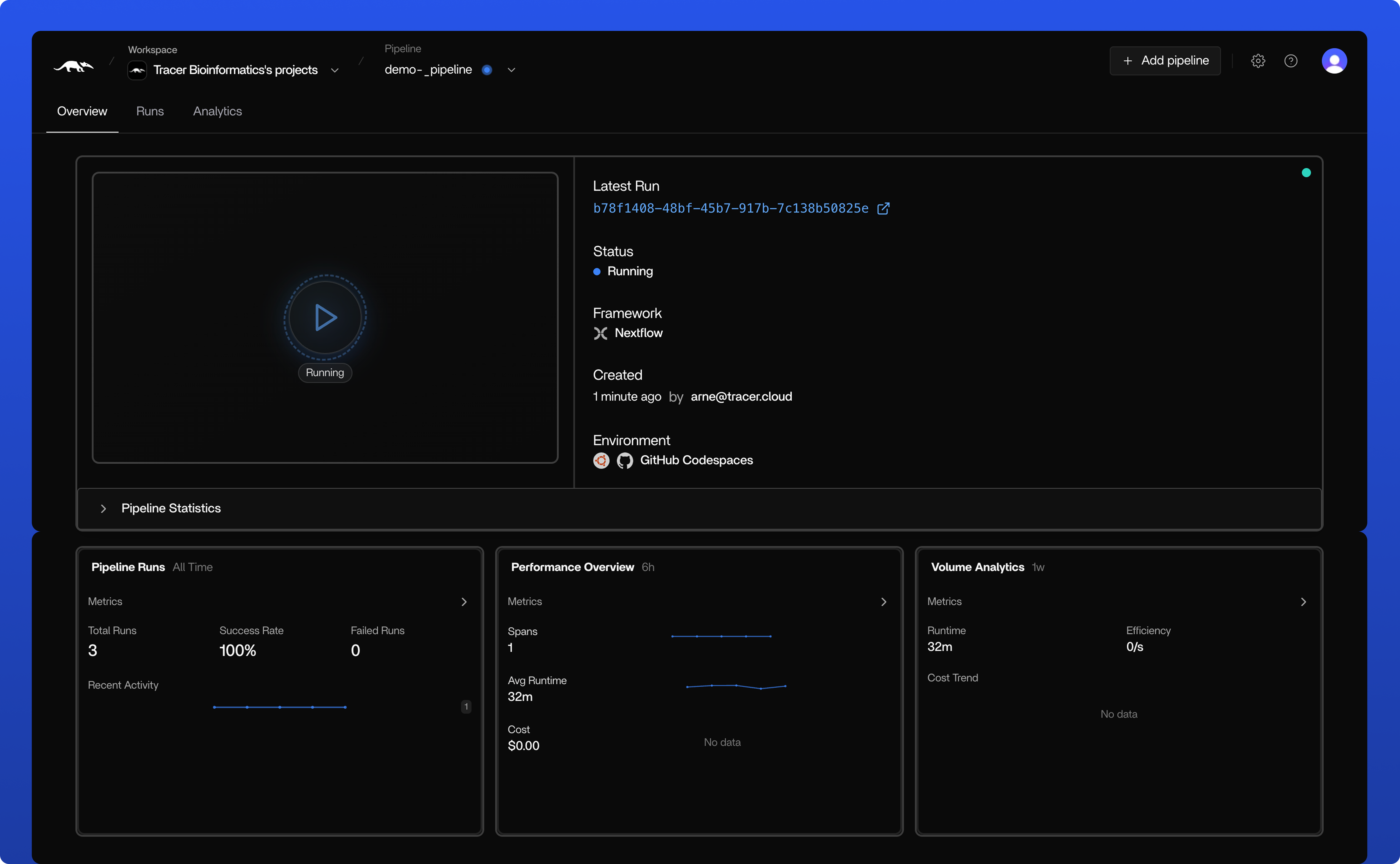
As you will most likely check the current or latest run of the selected pipeline, you can click the blue link **"Latest Run"** to go to the latest run.
If you are searching for an older run, you can click on the **"Pipeline Runs"** box in the bottom left corner of the screen. This will show you all runs, where you can select the run you are looking for.
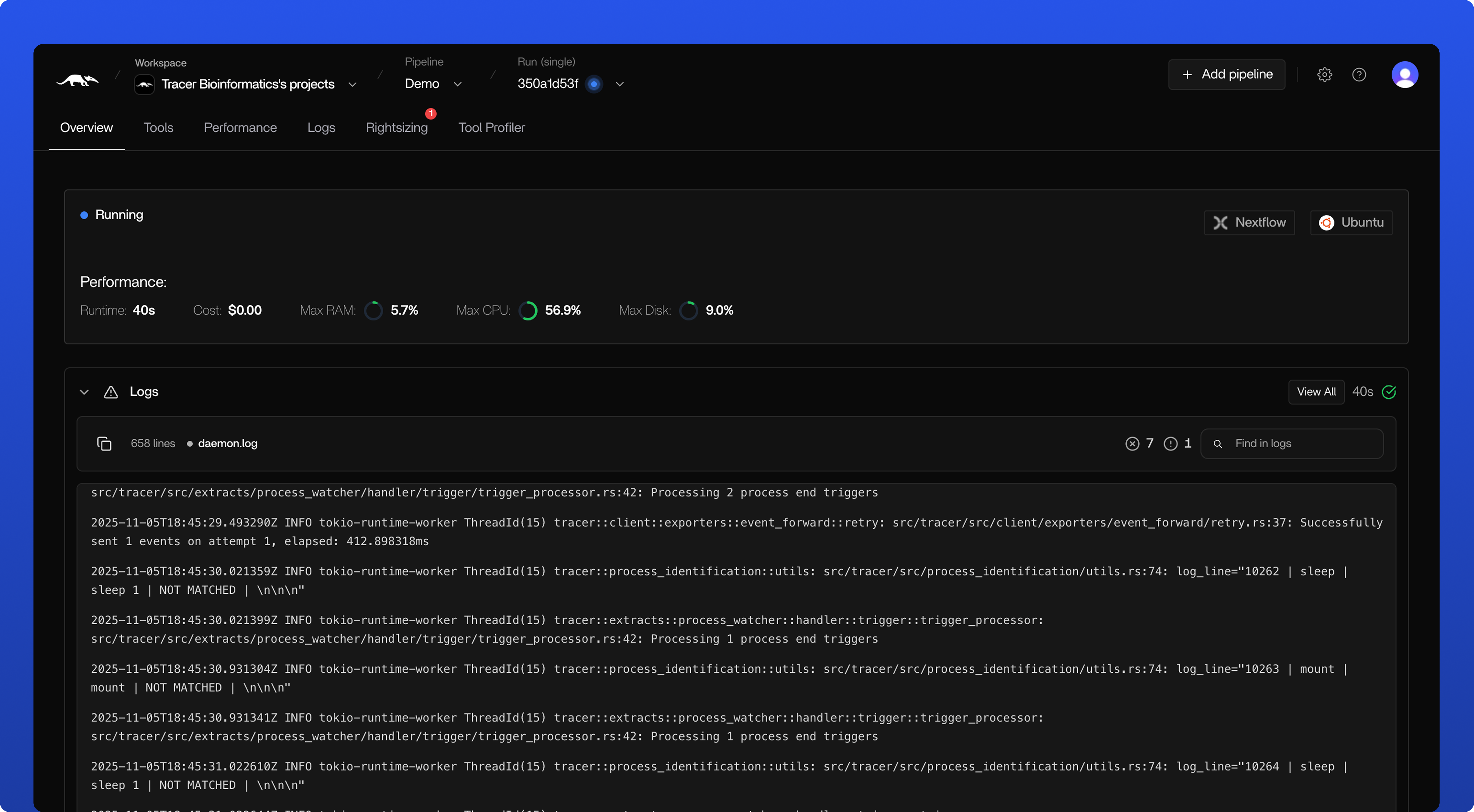
Here, you get the first high-level overview of the pipeline run. You can see the main metrics, runtime and cost as well as the automatic logs with warnings and failure indicators.
To go to the task status, click on the **"Tools"** tab next to "Overview". This will show you the status of all tasks within this pipeline run.
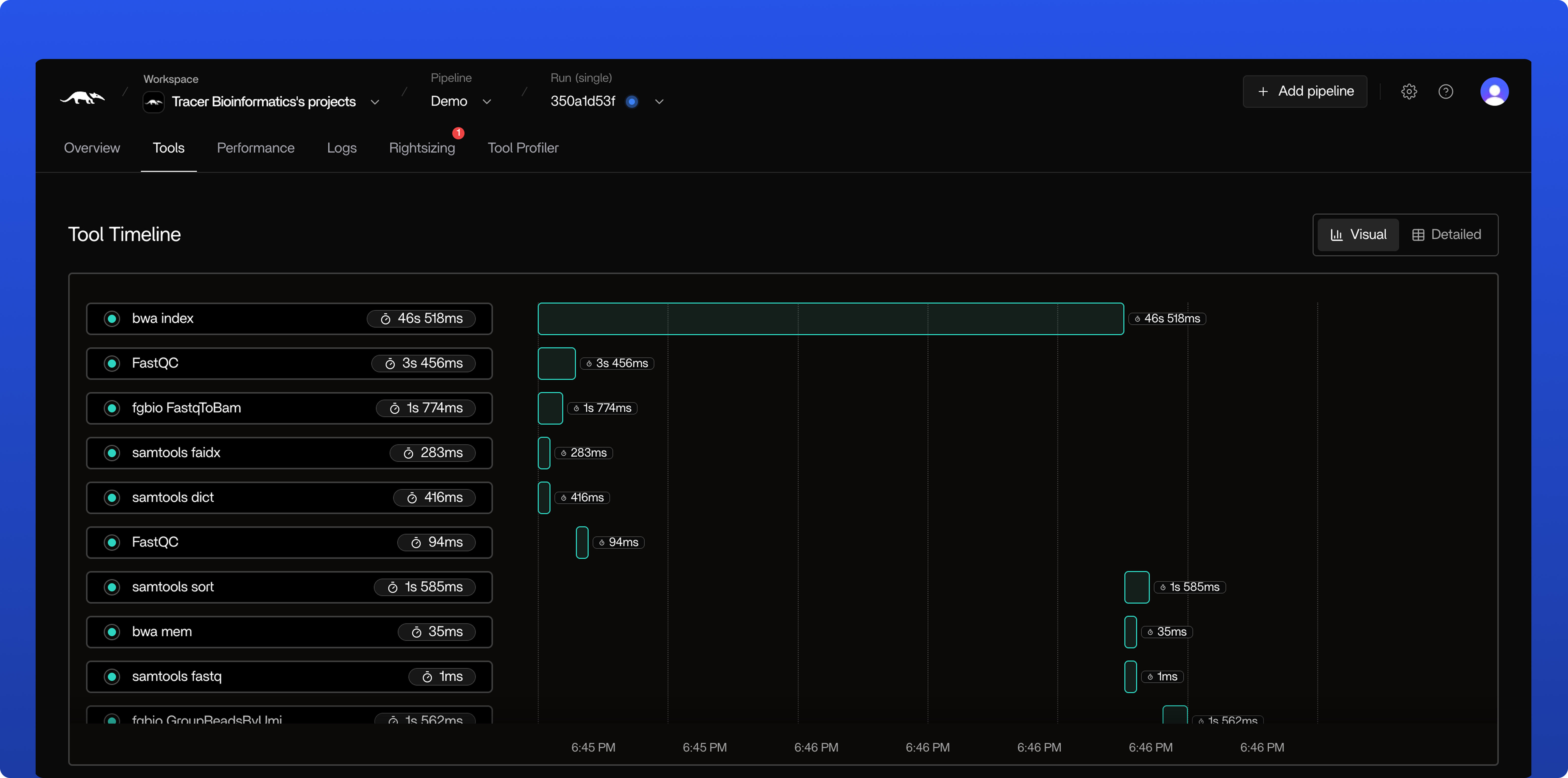
The tool visualizer shows you the status of all tasks within this pipeline run:
* **Bar width** indicates the runtime of the task
* **Bar color** indicates the status: Grey (running), Green (completed), Red (failed)
In the image above, all tools are completed as indicated by the green bars.
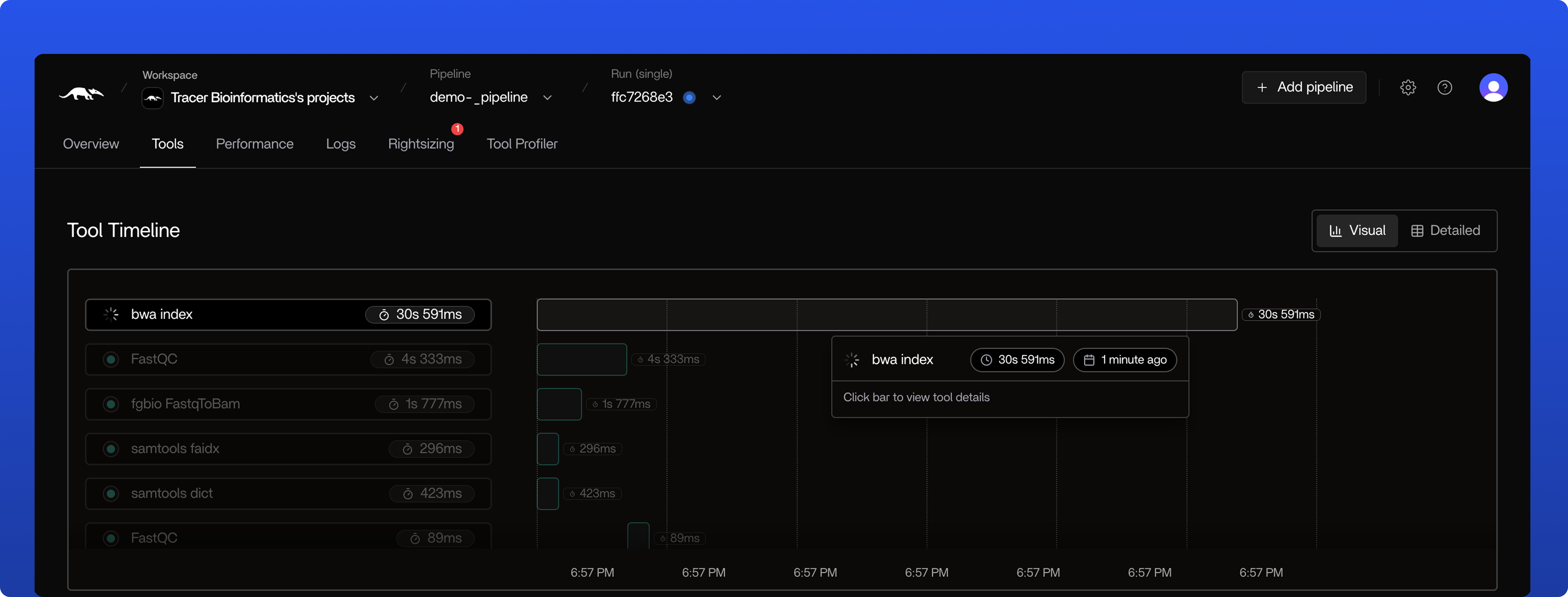
**When hovering over a specific task**, you can see the status, runtime, and the exact moment the task started. By clicking the bar, you can dig one level deeper to see the metrics, runtime, cost, and logs with warnings and failure indicators.
In the image above, the task is still running as indicated by the grey bar and has been running for exactly 30.591s.
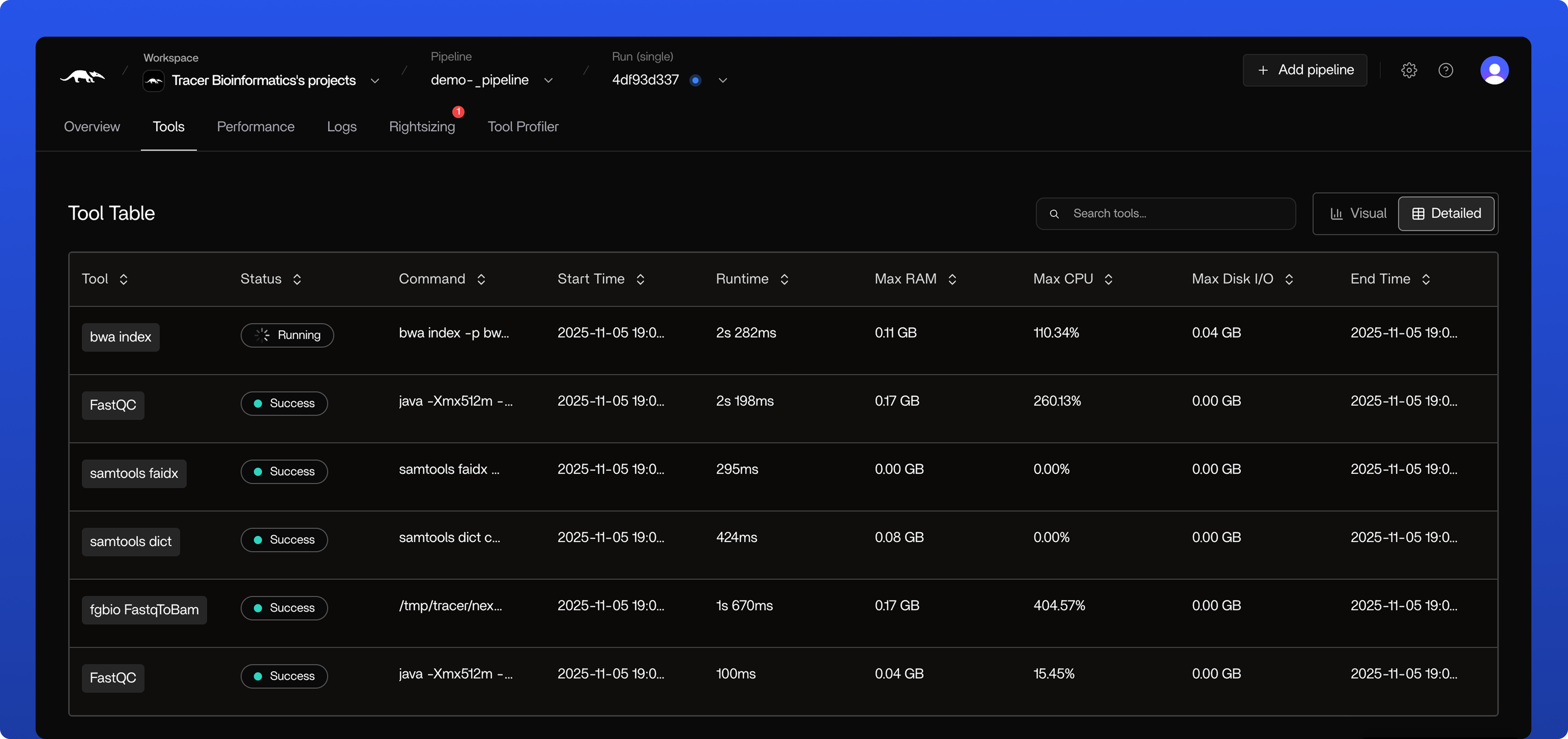
**For a more detailed overview**, click on the **"Detailed"** button in the top right corner of the screen. This will list all tools in a table showing status, command, start time, runtime, max RAM, max CPU, max Disk I/O, and end time.
In the image above, you can see that one task is still running as indicated by the "Running" status, while the others are successfully completed.
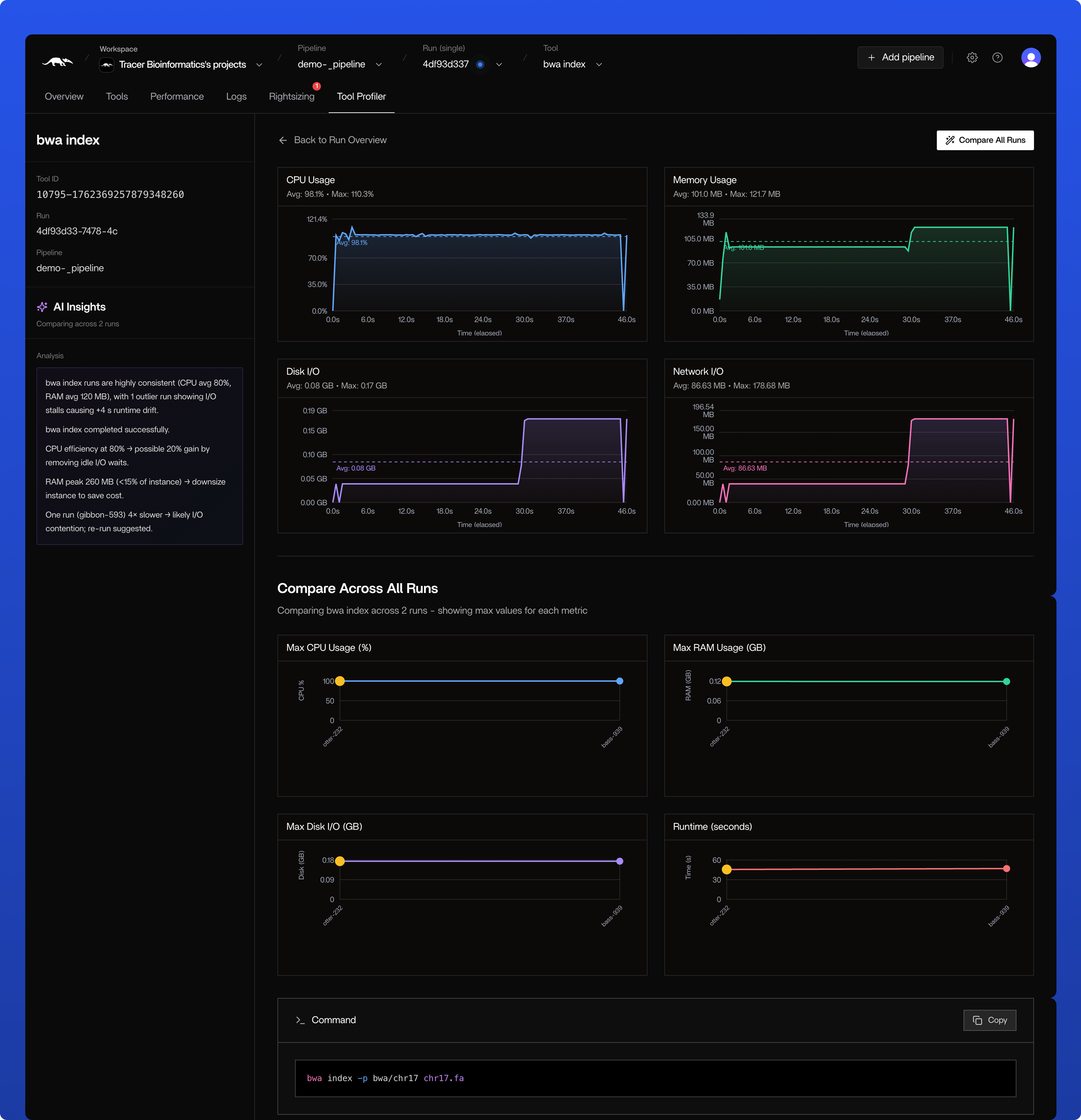
Here, you can see the run-specific metrics including:
* **Tool ID** - Unique identifier for the task
* **Run Name** - Name of the current run
* **Pipeline Name** - Name of the parent pipeline
* **AI Insights** - Intelligent analysis and recommendations
* **Runtime Metrics** - CPU, memory, and I/O usage
You can also compare this task's performance to previous runs.
**After these steps, you’ll have live visibility into task progress, metrics, and logs for your pipeline run.**
## Task Status Indicators
Tracer displays tasks with the following status indicators:
| Status | Description | Color Used to Indicate |
| ------------- | --------------------------- | ---------------------- |
| **Running** | Task is currently executing | Grey |
| **Completed** | Task finished successfully | Green |
| **Failed** | Task encountered an error | Red |
## Task Metrics
When viewing a task, you'll see detailed information including:
| Category | Metric | Description |
| -------------------------- | --------------------- | ------------------------------------------------------ |
| **Status & Timing** | Status | Current state of the task (Running, Completed, Failed) |
| | Runtime | Total execution time |
| | Start Time | When the task began |
| | End Time | When the task completed (if applicable) |
| **Resource Usage** | CPU | Processor utilization |
| | RAM Memory | Memory consumption |
| | Disk I/O | Read/write operations |
| | Network I/O | Network traffic |
| **Logs & Debugging** | Automatic Logs | Standard output and deep system-level logs captured |
| | Warnings | Highlighted warnings and failure indicators |
| **Additional Information** | Command | The exact command executed |
| | Historical Comparison | Performance comparison with previous runs of this task |
## Next Steps
How to get even more out of Tracer's capabilities:
Learn how to debug failed tasks