> ## Documentation Index
> Fetch the complete documentation index at: https://opensre.com/docs/llms.txt
> Use this file to discover all available pages before exploring further.
# Quickstart
## Before you begin
Make sure you have:
* A terminal open in a code project
* A Git repository (recommended for the full workflow demonstration)
## Step 1: Install and start opensre
```bash theme={null}
curl -fsSL https://install.opensre.com | bash -s -- -dc
```
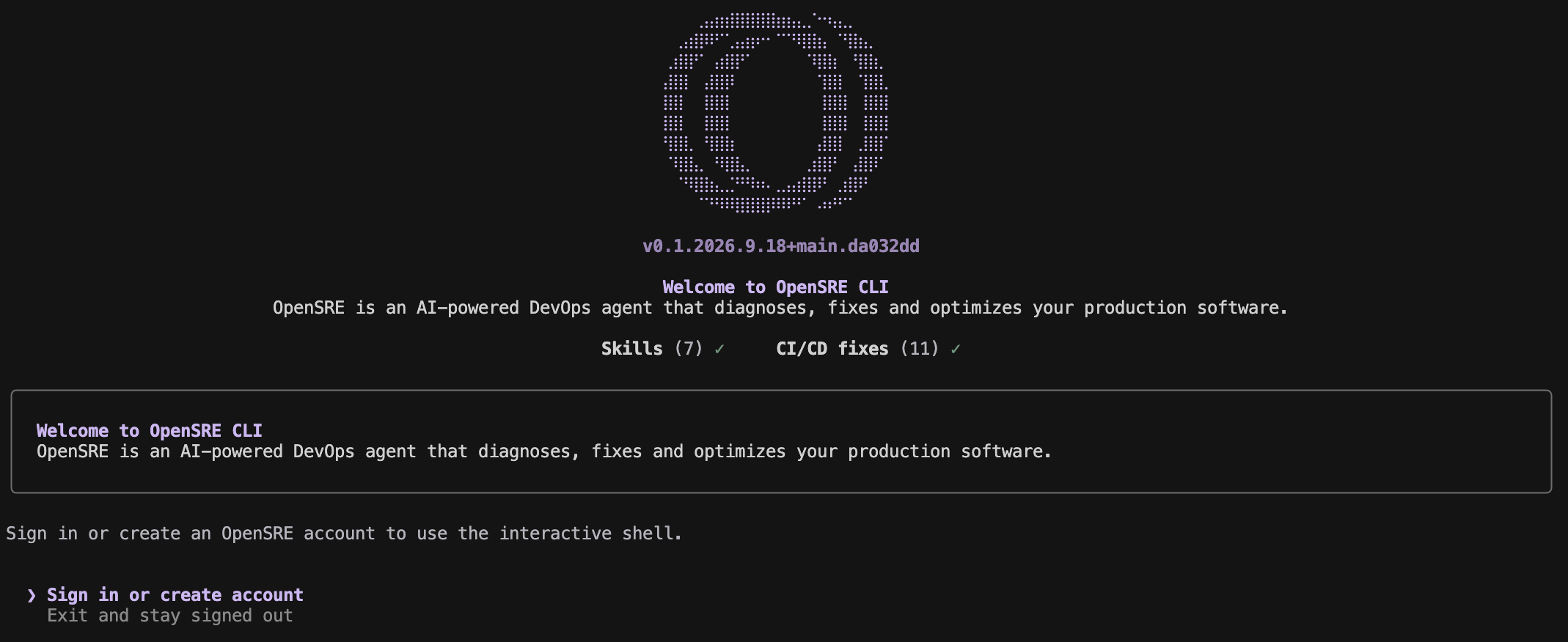
Then start OpenSRE:
```bash theme={null}
opensre
```
 On Windows, open PowerShell and run:
```powershell theme={null}
& ([scriptblock]::Create((irm https://install.opensre.com/install.ps1))) -dc
```
See [Windows](/docs/install/windows-local).
Prebuilt Linux binaries require **glibc 2.35+** (Ubuntu 22.04+ or comparable). See [platform requirements](/docs/install/linux-local#binary-compatibility) before installing on another distribution.
## Step 2: Sign in
Choose **Sign in or create account** in the welcome screen.
The browser opens the OpenSRE sign-up page, where you can use email or another enabled provider. Signing in activates the OpenSRE-hosted model, so you need no LLM key. Back in the terminal, OpenSRE confirms the session with the web app and opens the shell. If the sign-in screen comes back instead, see [troubleshooting](#troubleshooting).
## Step 3: Pick a demo, or skip it
The first shell prompt asks which demo to run:
```text theme={null}
Which demo would you like me to run?
(A) Explore a repo and analyze its CI/CD performance (recommended)
(B) Set up an agent that improves CI/CD reliability over time
(C) Run CI/CD repairs remotely
(D) Connect OpenSRE to Slack and hand off DevOps chores for your team
(E) Skip the demo and open the shell
```
On Windows, open PowerShell and run:
```powershell theme={null}
& ([scriptblock]::Create((irm https://install.opensre.com/install.ps1))) -dc
```
See [Windows](/docs/install/windows-local).
Prebuilt Linux binaries require **glibc 2.35+** (Ubuntu 22.04+ or comparable). See [platform requirements](/docs/install/linux-local#binary-compatibility) before installing on another distribution.
## Step 2: Sign in
Choose **Sign in or create account** in the welcome screen.
The browser opens the OpenSRE sign-up page, where you can use email or another enabled provider. Signing in activates the OpenSRE-hosted model, so you need no LLM key. Back in the terminal, OpenSRE confirms the session with the web app and opens the shell. If the sign-in screen comes back instead, see [troubleshooting](#troubleshooting).
## Step 3: Pick a demo, or skip it
The first shell prompt asks which demo to run:
```text theme={null}
Which demo would you like me to run?
(A) Explore a repo and analyze its CI/CD performance (recommended)
(B) Set up an agent that improves CI/CD reliability over time
(C) Run CI/CD repairs remotely
(D) Connect OpenSRE to Slack and hand off DevOps chores for your team
(E) Skip the demo and open the shell
```
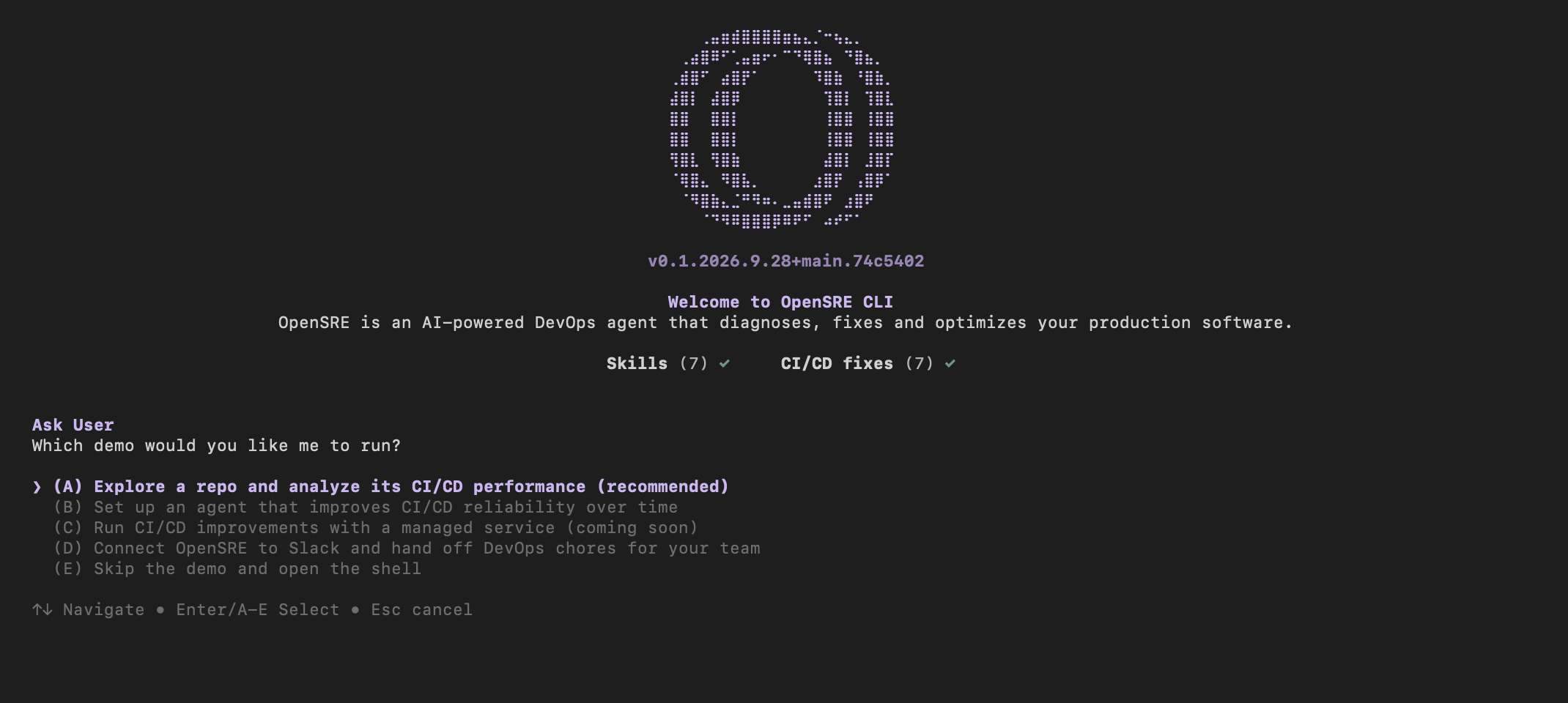 Choose **A** to see what OpenSRE does with a real repository on your machine: it
reads the last 30 days of GitHub Actions history and reports how reliable your
CI is and how much developer time it costs. It needs GitHub access: connect it
first with `opensre integrations setup github` (authorize in the browser, or
paste a token). Without it the demo stops and names that command. See
[CI/CD analytics demo](/docs/cicd/cicd-analytics-demo).
Choose **E** to go straight to the prompt. Type `/demo` to open the menu again at
any time, or start with `opensre --skip-onboarding` to skip it.
## Step 4: Ask your first question
Choose either path — both use the same local `opensre` binary:
**Interactive shell** — start OpenSRE with no arguments and describe what's going on in plain English:
```bash theme={null}
opensre
```
**One-shot headless run** — a single agent turn from your shell or a CI job:
```bash theme={null}
opensre ask "why did checkout latency increase today?"
```
OpenSRE reasons across your connected systems, calling the tools it needs, and prints the answer. See [Headless CLI](/docs/guides/headless-cli) for tool approvals, `--json` output, and exit codes.
Inside the interactive shell, `/help` lists commands, `/status` shows the current setup, `/effort` changes reasoning effort, and `/exit` closes the shell.
Choose **A** to see what OpenSRE does with a real repository on your machine: it
reads the last 30 days of GitHub Actions history and reports how reliable your
CI is and how much developer time it costs. It needs GitHub access: connect it
first with `opensre integrations setup github` (authorize in the browser, or
paste a token). Without it the demo stops and names that command. See
[CI/CD analytics demo](/docs/cicd/cicd-analytics-demo).
Choose **E** to go straight to the prompt. Type `/demo` to open the menu again at
any time, or start with `opensre --skip-onboarding` to skip it.
## Step 4: Ask your first question
Choose either path — both use the same local `opensre` binary:
**Interactive shell** — start OpenSRE with no arguments and describe what's going on in plain English:
```bash theme={null}
opensre
```
**One-shot headless run** — a single agent turn from your shell or a CI job:
```bash theme={null}
opensre ask "why did checkout latency increase today?"
```
OpenSRE reasons across your connected systems, calling the tools it needs, and prints the answer. See [Headless CLI](/docs/guides/headless-cli) for tool approvals, `--json` output, and exit codes.
Inside the interactive shell, `/help` lists commands, `/status` shows the current setup, `/effort` changes reasoning effort, and `/exit` closes the shell.
 Connect the tools OpenSRE should read with `opensre integrations setup ` or `/integrations setup ` in the shell.
Good first tasks, once GitHub is connected:
```text theme={null}
analyze Tracer-Cloud/opensre CI/CD performance for the last 30 days
how many PRs and branches currently have failing CI across all my orgs?
fix failing checks on Tracer-Cloud/opensre#4597
```
More in [CI/CD with OpenSRE](/docs/cicd/overview).
## Step 5: Keep up to date
```bash theme={null}
opensre update
```
## Uninstall
To remove opensre and all its local data from your machine:
```bash theme={null}
opensre uninstall
```
Pass `--yes` to skip the confirmation prompt:
```bash theme={null}
opensre uninstall --yes
```
## Troubleshooting
* **`opensre` is not found**: Open a new terminal, or add the bin directory printed by the installer to `PATH`.
* **The Linux binary does not start**: Prebuilt binaries require glibc 2.35 or newer; use a supported distribution or the [Docker guide](/docs/install/docker).
* **`make` is missing**: See the [development setup guide](https://github.com/Tracer-Cloud/opensre/blob/main/SETUP.md) if you are working from source.
* **The demo menu did not appear**: Menus need an interactive terminal. Run `opensre` in a terminal window rather than through a pipe or a CI job, then type `/demo`.
* **The sign-in screen comes back after you signed in**: Run `opensre account status`; it names what is wrong with the session (expired, revoked, or the web app unreachable).
Connect the tools OpenSRE should read with `opensre integrations setup ` or `/integrations setup ` in the shell.
Good first tasks, once GitHub is connected:
```text theme={null}
analyze Tracer-Cloud/opensre CI/CD performance for the last 30 days
how many PRs and branches currently have failing CI across all my orgs?
fix failing checks on Tracer-Cloud/opensre#4597
```
More in [CI/CD with OpenSRE](/docs/cicd/overview).
## Step 5: Keep up to date
```bash theme={null}
opensre update
```
## Uninstall
To remove opensre and all its local data from your machine:
```bash theme={null}
opensre uninstall
```
Pass `--yes` to skip the confirmation prompt:
```bash theme={null}
opensre uninstall --yes
```
## Troubleshooting
* **`opensre` is not found**: Open a new terminal, or add the bin directory printed by the installer to `PATH`.
* **The Linux binary does not start**: Prebuilt binaries require glibc 2.35 or newer; use a supported distribution or the [Docker guide](/docs/install/docker).
* **`make` is missing**: See the [development setup guide](https://github.com/Tracer-Cloud/opensre/blob/main/SETUP.md) if you are working from source.
* **The demo menu did not appear**: Menus need an interactive terminal. Run `opensre` in a terminal window rather than through a pipe or a CI job, then type `/demo`.
* **The sign-in screen comes back after you signed in**: Run `opensre account status`; it names what is wrong with the session (expired, revoked, or the web app unreachable).